First steps
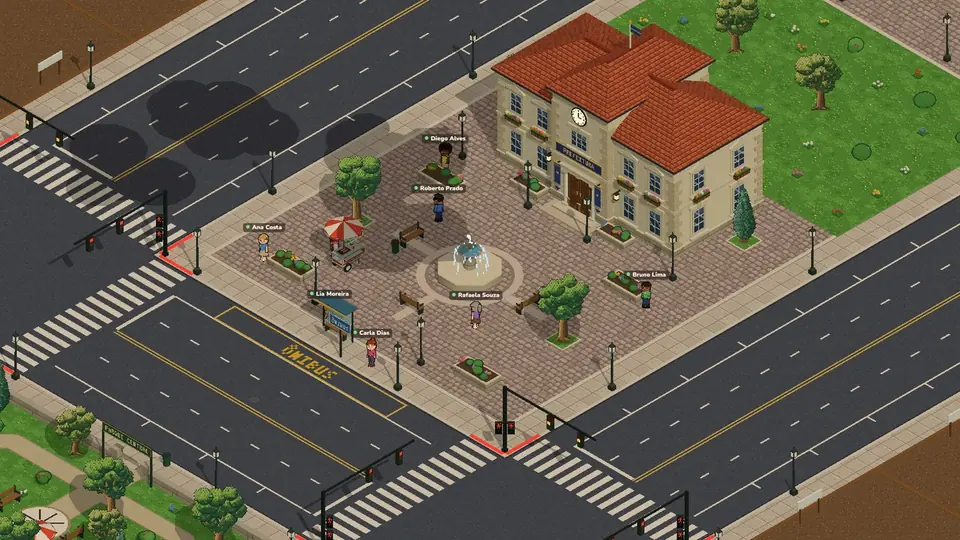
Arriving in the city
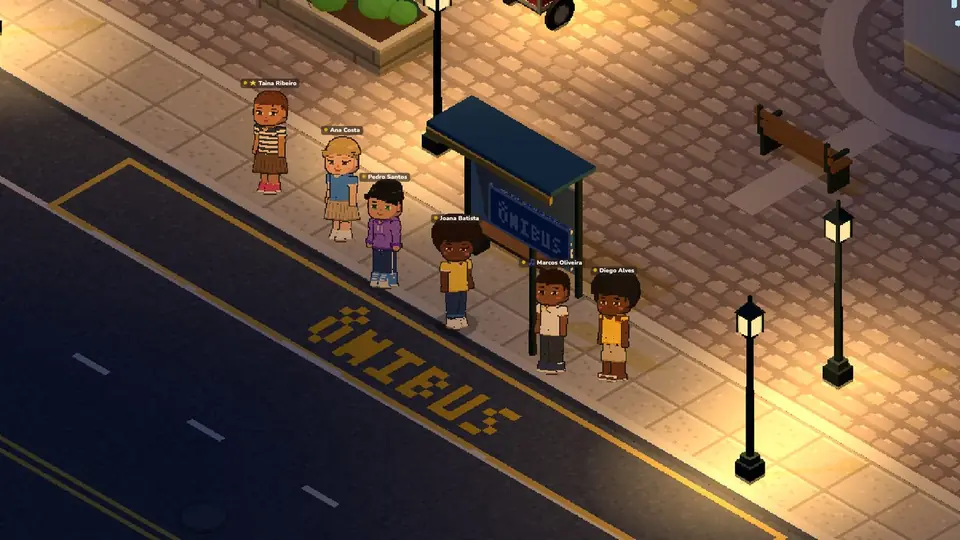
When you create your character you pick the look, including Child, Adult or Elder, and where you will live. Your first trip is by bus: it drops you at the stop in front of City Hall. Getting off, the welcome already shows the three first jobs: pick one and your character walks to work by itself. On CrazyGames there is no bus: you start right at the stop. In a new character's first 10 minutes the city shows by day on your screen, and the question about turning notifications on only comes after them (never on CrazyGames).
Starting missions
You start with 0 Coins. In Missions there are four optional starter missions, and each one pays 10 Coins once:
The Next mission card shows one mission at a time, with its reward, in this order: get a job, eat something, change your look, take the taxi to the bar (free that one time), order food from the Food app at its door (the first dish is free too), take a photo in the bar for Photos, sing or play pool there (or a race, when the city has no bar), see the plots for sale and, last, shower and sleep at the hotel. Start starts it, and × skips the tutorial: the card is gone for good, and the missions stay in Missions, paying the same. In Missions the next one comes first, and Everything you can do shows the carousel of what you can do in the city. On a phone, Missions is in the menu (☰), and the number on the menu button shows how many missions you have.
More missions
There are ten more missions, one for each thing in the Everything you can do carousel. They also pay 10 Coins once each and close by themselves when you do them, even without pressing Start. Start takes you to the place, or opens the phone:
- Sit in a class at the university.
- Deposit at the bank.
- Adopt a pet at the pet shop.
- Buy or rent a car or a motorbike at the dealership.
- Buy a plot.
- Sing, play pool or have a drink at the bar (on CrazyGames, Sing or play pool at the bar).
- Ride in a horse race or race at the circuit.
- Go into the church (not on CrazyGames).
- Take the bus to another city.
- Call a taxi, order food or send a message on the phone.
To play, use Chrome or Edge 111, Firefox 121 or Safari 16.4 (on iPhone, iOS 16.4) or newer.
On a Windows or Mac computer you can also install the game: on the login screen, under the login box, press Download for Windows or Download for macOS. On an iPhone, Download for iPhone opens the iPhone app in TestFlight. The same buttons are in the game, in the menu (☰) → Social media. The Folkora Launcher installs the game and brings every new version by itself each time you open it.
Hunger and stamina
Hunger
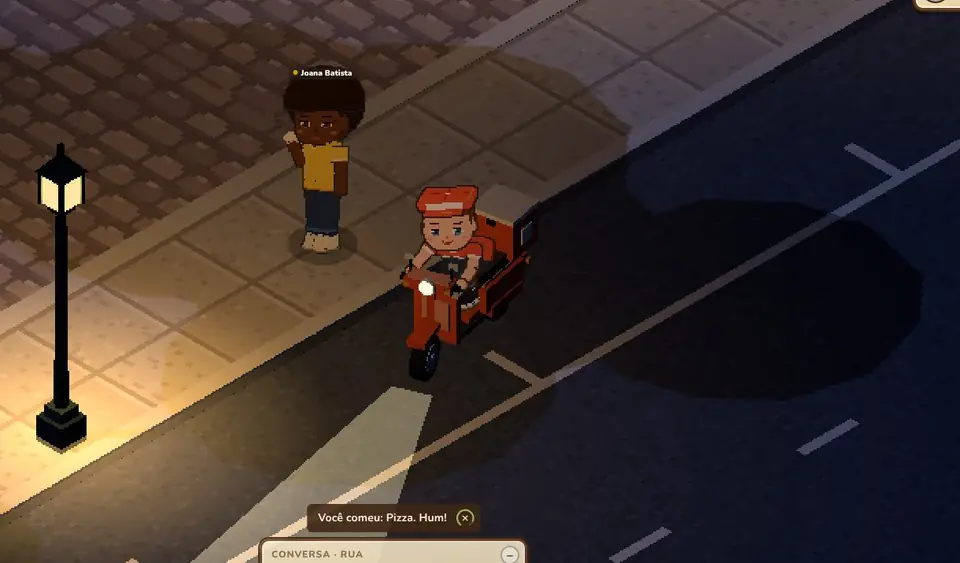
Hunger drops slowly while you play.
| Where | What |
|---|---|
| Snack bar, in the gas station's convenience store | The chocolate bar is free and fills hunger only up to 30%. |
| Hot dog stands, in the park, in front of City Hall and of the University | 15 Coins, fills you up. |
| Bar, at the counter or seated inside | French fries 12 Coins, fill 50% of your hunger. |
| Food stalls around the map, each with its own food (they show on the map) | Ice cream in the parks 10 Coins, churros at the skate park 10, skewers by the bar and near the hippodrome and the racetrack 16, and pastel on the church square and in front of the hospital 12. |
| Kiosks of the Porto da Barra, the beach of Salvador (they show on the map) | Typical food of Bahia: acarajé 15 Coins, abará 13, grilled cheese skewer (queijo coalho) 9 and cocada 7. |
| Food app on the phone | Burger, noodles, pizza or sushi delivered to you on the street, and dishes with funny effects in the Fun tab. During the bar mission, your first dish from the Dishes tab is free. |
| Your Inventory, with what you bought at the supermarket | Fruit, tomatoes, carrots, cucumbers and cheese: tap the food and Eat, standing or seated, any time, even when full, anywhere except inside the church. Each one fills only 10% of your hunger; a dish you cook fills much more. |
You can eat even when you are full, and hunger never goes past 100%. When you eat, how much your hunger went up shows beside it, like +15.
Stamina
Stamina only drops while you walk, drive, work, study, cook or fish. Without it you can't work or study, so lie down on a bed to sleep. Your Hotel room has one, and it is free. In any bed you sleep under the blanket, with little zs rising over your head. Sitting also rests you, but more slowly and only up to 20% of the bar. At a Doctor's Clinic, a Check-up fills all your stamina and a Vaccine halves what it costs for 1 day; each Cup of coffee gives a little stamina, up to 60% (see Doctor's Clinic and Coffee). You can't sleep inside a company, and you only take a bath there in its Bathroom. Every job minigame spends the same stamina, in any job, and it shows beside the bar as −3: a full bar lasts 30 minigames.
Reputation
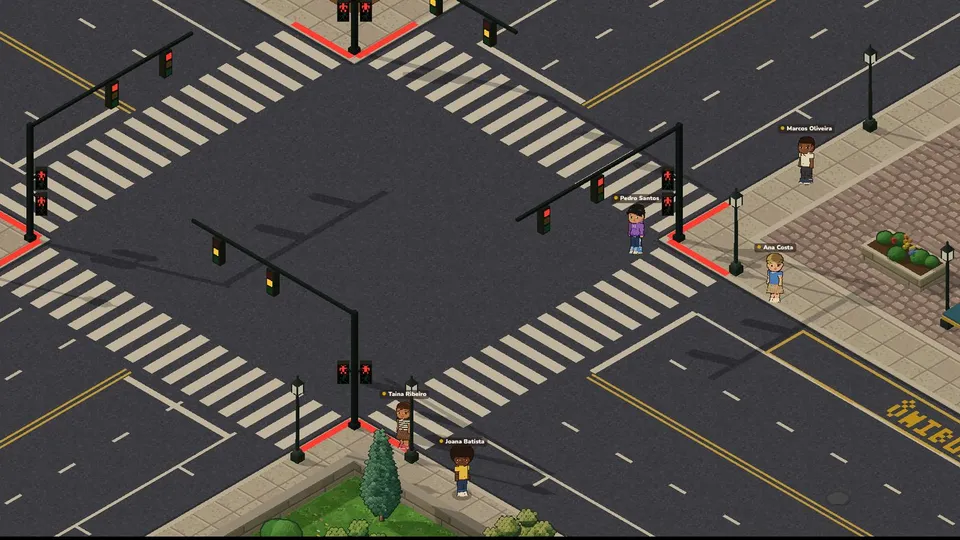
Reputation shows what kind of citizen you are, from 0 to 100. Everyone starts at 50. You see it in My character and in the bar with the shield, under your hunger and stamina (on a phone, the three are rings on your profile): red below 30, gold from 30 to 69, green from 70. Every time it changes, +X (green) or −X (red) shows beside the number for a moment. With reputation below 20, you cannot work or study: at the City Hall's Jobs counter, Community service brings minigames with no pay, and each one you win gives +1 reputation, until it is back at 20.
Only good actions raise it
| Driving 1 km without running a red light or hitting anyone | +1 up to +5 a day |
| As a police officer, stopping a wanted player with a fine or an arrest | +2 |
| As a doctor, finishing a surgery | +2 |
| Working: for each job minigame you win. The tenths add up, and the number goes up by 1 when they make a whole point. | +0.3 up to +25 a day |
Wrongdoing lowers it
| Walking on the street outside a crosswalk (not a police officer on patrol) | −1 every 10 seconds, up to −5 a day |
| Running a red light | −2 |
| Running someone over on the sidewalk or a crosswalk | −10, or −15 if they fall |
| Stealing a car or motorbike | −20 |
| Going to jail | −5 |
Getting around
Walking
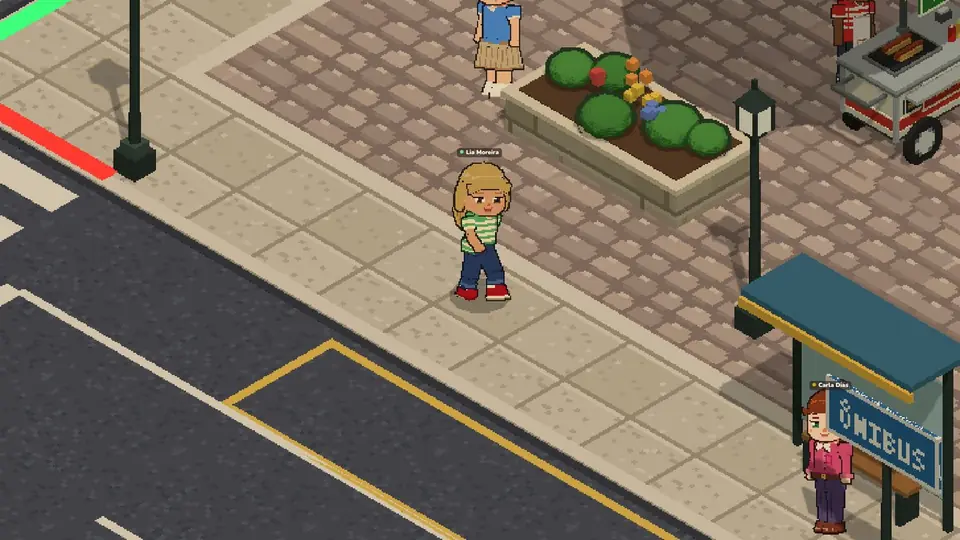
Click or tap the ground to walk there. The character goes around obstacles and keeps to the middle of the sidewalk, the crosswalks and the eco park trails and, on the dirt roads of the farms and the village, to their sides, away from the middle where the cars go, waiting for the green pedestrian light to cross (at a crosswalk in the middle of a block it presses the button). On a bicycle, kick scooter or skateboard, clicking the ground rides there; in a car or on a motorbike, the autopilot drives you there. In a boat, only the minimap click works.
With the keyboard, the arrows or W A S D walk in diagonals. On a computer, the menu (☰) → Keys lets you change the keys for walking and for every action, and Restore defaults brings them back. On a phone, hold your finger still on the ground for half a second and a joystick appears: slide to walk. In the menu (☰) → Settings → Joystick you choose whether it sits on the Left or on the Right.
The action buttons show over what you are about to use, like Enter over the door and Go up over the stairs; on a computer they show their key. The actions without a place, like Get out of the car, Honk and Turn on siren, stay in the corner of the screen; on a phone they become round buttons by your thumb (lying down, at the right edge, under the menu and phone buttons). When there are two or more, they become one button, Actions, showing how many: tap it to open them and pick one, and tap the X (or anywhere else) to close it. On a computer their keys work with the button closed too. The ones over things stay there.
Going into a house, a company or any other building, a short loading screen shows while its rooms get ready.
On a phone you also choose how to drive cars, motorbikes, bicycles, kick scooters, skateboards and the boat in the menu (☰) → Settings → Controls:
With the gyroscope and the buttons, speeding up and reverse are on the right of the screen. To put them somewhere else, tap Screen layout → Move in the same place, drag each group where you like, then tap the check; the round arrow puts everything back where it was. There you can also drag the rest of the screen wherever suits your device: your profile, the city's name, the clock, the column of round buttons, the animations button, the chat, the minimap and the joystick. A joystick you move stays on the screen in that spot, with the phone upright too. Everything is kept on this device only, and upright and lying down each keep their own places. On a computer, Screen layout → Move is in Settings too. On a tablet the minimap goes up next to the round buttons while you drive.
Camera and graphics
You can play in 2D or 3D. In 2D, the Automatic camera pulls back when you drive or walk around the city and comes closer when you stop, sit down or go inside a building; the fixed camera stays at 1x, 2x or 3x. In 3D, choose Third person, First person or Automatic, which looks at you from above. In third and first person, W or ↑ walks where you look, S or ↓ walks back, and A / D, ← / → or dragging on the screen turn you. In third person, to see your character from another side, drag with the right mouse button or with two fingers on a phone: the camera swings around it and you keep walking where it looks. The Z key (or a tap with two fingers) shows your character from the front and, again, brings the camera back behind. When you tap a spot to walk there, your character turns along the way and the camera follows behind. In 3D, the phone's stick walks in any direction. In vehicles, the camera stays behind you and the stick speeds up when pushed up, brakes when pulled down and steers to the sides. The camera never goes into walls or people: near a wall it comes closer to you, and anyone standing in front of it disappears until they move out of the way. Change it any time in the menu (☰) → Settings.
In 2D and with the 3D Automatic camera, the Rotate button next to Direction in Settings turns the camera to the next of the 4 directions each time you tap it. The same green round-arrow button sits in the minimap's bottom corner, to turn without opening Settings; inside houses and buildings, where there is no minimap, it sits alone in that bottom corner of the screen, also while you edit the room. The controls keep following the screen. Inside houses and buildings, the walls on the camera's side stay low so you can see everything.
To see only the city, tick No interface in Settings, or press J on a computer: only the clock, the menu button (☰) and, when you need it, the joystick stay on screen. Untick it, or press J again, to bring everything back. You can change the key in the menu (☰) → Keys.
The game remembers your account on your phone and on your computer: when you come back, you go straight in without typing your password. On a borrowed computer, use Log out on your profile before closing.
On the iPhone, Folkora also has an app, still in testing: in the iPhone's browser, open the menu (☰) → App, tap Install TestFlight and then Install Folkora.
Other players
Holding on another player for half a second opens a ring of buttons above their head: their profile, greetings, Fight 🥊 with friends and family and, between close friends, flirts. When someone is in a vehicle, tapping their name opens their card.
With Fight, the other player answers Yes or No. The fight lasts 5 seconds in a cloud of smoke and each one has a 50% chance to win: the loser sits dizzy on the ground for 3 seconds. Fighting doesn't hurt, costs nothing and doesn't bring the police. After a fight invite, neither of you can fight again for 2 minutes.
The ring above another player's head also shows everything you can do together, for free: High five ✋, Selfie together 🤳 and Dance together 🕺 with anyone; with friends, family or your partner, also Friendly hug 🫂, Snowball fight ❄️ (a Pillow fight 🪶 inside buildings) and Piggyback 🐴; and the Secret handshake 🤜 only between best friends. The other player answers Yes or No.
The selfie goes to both of your Photos apps. The dance goes on until one of you walks or taps Stop dancing. On a piggyback, whoever asked carries the other on their back for up to 1 minute: the one on the back gets down by walking or tapping Get down, and the one carrying can tap Put down. Give a gift 🎁 opens the Trade: what you give without asking anything back arrives in a gift box, which the other opens right there.
Follow 👣, in the same ring, makes your character walk after the other player by itself. It stops when you walk, tap the ground or Stop following, and also when they go through a door, get into a vehicle or leave the city. Whoever is followed sees who it is and can tap Ask to stop: then that person cannot follow you again for 10 minutes.
Clock and map
The clock in the corner shows the time and the weekday. A day in Folkora lasts 24 minutes.
Tap the minimap in the corner of the screen, or press B on a computer, to open the whole city map. On the minimap and the city map, each street's name is written on it, and every city has its own. Each blue dot is a player on the street and your friends show their initials. So that nobody sees where you are on the minimap or the city map, tick Hide my location on the minimap in the menu (☰) → Settings; players near you still see you on the street. The blue number on a place's icon shows how many people are inside; players' homes are not shown. Your friends' and family's homes are on the map and its legend, named after their owner, and so are your spouse's home and the homes you live in. Tapping a house, company or building on the map takes you to its door, on foot, bicycle, kick scooter or skateboard; by car or motorbike, to the kerb nearest its door, also outside the city, like the supermarket, the skate park, the Eco Park and the farm. When you tap a place on the map or its legend, choose Autopilot to be taken there, or Compass to go yourself: an arrow above your head (on a phone, in a vehicle, on the street just ahead of it) points the way until you arrive. With either one, the way is painted blue on the minimap, and above it you see how far you still have to go, in metres or kilometres. On autopilot, a car or motorbike left standing in the street is driven round, and on foot the way goes round parked vehicles. The autopilot obeys the lights and waits for the cars going by, also at the junctions without lights on the city's edge, so it does not crash. It sets off at full pace, picking up speed as it moves into its lane (slowly only when a vehicle is parked right in front of it), and it keeps watching far ahead and to its sides: it follows the vehicle in front at a safe distance, slows down for one moving into its lane and stops in time for anyone crossing its way, players and NPCs alike. The legend is split into groups, like Businesses (the players' ones), Homes (yours on top, then your family's and your friends', each under its own title) and Public buildings (the city's own, like the City Hall, the Hotel and the Hospital): tap a group's name to close or open it, and use the search above it to find a place quickly. When you tap a place on the map or its legend, the Favorite button keeps it in the Favorites group, right at the top of the legend, with a star by its name; tap Favorite again to take it off. Your favorites are kept in your account, in each city. On the legend, each player's company shows whether it is Open or Closed; on the map, an open company has a green dot on its icon and a closed one is grey. The minimap shows the open companies, with the green dot. The bridge to the farms shows on both maps too.
Once in a while, rarely, a gale blows over the whole city for a few minutes: the trees sway hard and leaves and dust fly down the streets.
By day colorful butterflies flutter only over the grass of parks and gardens, now and then landing on the grass to open their wings in the sun. On dirt paths a little dust rises with each step, the beach sand keeps footprints, and smoke rises from the chimneys of houses with someone home.
If your internet drops
If your connection drops or you change network, like from Wi-Fi to mobile data, the game comes back by itself and shows a message meanwhile. Your character stays where it is, waiting for you, for 30 seconds. Back in that time, everything goes on where it stopped: your job, your vehicle and what people said to you. After that your character leaves the game, and your vehicle and pet go with it, until you come in again.
Phone, chat and friends
Open the Phone to use the apps: Messages, Taxi, Food, Reminders, Notes, Real Estate, Bank, Photos, Dating and Radio. Taxi and Food only work on the street.
Tap the moon at the top of the phone, next to the clock, to turn on Do not disturb: messages still arrive, but with no sound, no card at the top of the screen, no notification (not even with the game closed) and only a dot on the phone button, which gets a small moon. The numbers stay on the apps. Tap the moon again to turn it off.
In Reminders, every time is on the game's clock. Tap Every day to make a reminder ring every game day at the chosen time, until you delete it. At the set time, the reminder rings like an alarm in the middle of the screen until you tap Stop, and the app keeps a badge until you open it.
In Notes you write notes that only you see. Tap + to write a new one: its first line is its name on the list. Tap a note to read or change it, then Save; leaving the note also saves what you wrote. The X beside a note, or the bin inside it, deletes it. You can keep up to 50 notes, each up to 10,000 characters, and they are the same in every city.
In Radio you listen to real stations from Brazil, Spain, Latin America, the United States and the United Kingdom, the ones in your city's language first. Tap a station to listen and the power button to turn it off; the slider sets its volume. Only you hear your phone's radio, and it turns off when the radio of the car or motorbike you are in turns on, or where a speaker is playing (see Furniture and decoration).
The owner of a Furniture Store, a Tuning Shop, a Notary's Office, a Vet Clinic or a Boutique gets the Furniture, Tuning, Notary, Vet or Boutique app on the phone, with the customers' orders waiting for you at all your shops, in every city, and how many there are on the icon. Every new order lets you know, even with the game closed, if notifications are on. Tapping an order at a shop in the city you are in offers the compass or the autopilot to it.
A doctor gets the Doctor app on the phone, with two lists of the city you are in: Clinic, with who came into your clinic (who you are seeing, who is waiting, with the check-up or vaccine they asked for, and who just arrived), and Hospital, with who was run over and is in the ambulance, in a bed or in surgery. The number on the icon shows how many people are on both lists. Tapping someone offers the compass or the autopilot to your clinic or to the hospital.
Photos
In the Photos app, the Everyone tab shows everyone's photos and the Friends tab your friends'. The camera button makes your character stand still while the controls move the camera: in 2D, drag the screen (or use WASD and the arrows) to turn around your character, and the mouse wheel or a pinch to zoom; in 3D, drag to look around and fly with WASD, Space to go up and Shift to go down (on a phone, the stick and the arrows on screen). The round button takes the photo: write a caption and tap Post. The animations button beside it makes your character play one in the photo; tap Stop to end it. Tick Show HUD, at the top, to have the game's buttons in the photo. The photo comes out with everyone on the screen. Tapping another player in the camera opens the same ring of buttons, with the fight and the toast when you can.
Open big, a photo of the Photos app or the Messages app zooms with the mouse wheel or a pinch; zoomed in, drag to see the rest. Double-tap a photo (or tap the heart) to like it, tap someone's name to see their profile and the flag to report. Your own photos you can download and delete. The balloon beside the heart opens the photo's comments: write yours at the bottom (one every 3 seconds). A comment's little arrow replies to it: the comment shows above the field and then on top of your reply. You can delete your comments and the ones on your photos, and report the others with the flag. When someone likes or comments a photo of yours, a badge shows on the app; the heart at the top shows who liked and what they commented. If your photo is picked for Folkora's Instagram story, it shows there too, with See on Instagram.
Lives
The live button (the waves beside the camera) shows your screen live to other players. Before you start, choose who watches, Everyone or Friends and family, and whether the game's buttons (Show HUD) go in the picture; your phone never shows. Tick Talk with voice to talk to whoever watches with your microphone (live voice is only for players 18 or older; the browser asks you to allow the microphone). While you are live, a bar at the top shows Live, how many people are watching, the microphone (green, glowing while you talk; tap it to turn it off and on again), the live's chat, Send to friends (your friends and family get a notice with Watch) and End live. On a phone, this bar is small, under the city's name, with how many people are watching, the microphone and End live; the live's chat and Send to friends are in the Photos app. The lives you can watch show at the top of the app, each with the person's face: tap one to watch and chat with everyone there, the person live included (one message every 2 seconds). While you watch, your screen shows the live and your character waits where it was; in a live with voice, the waves in the picture's corner show when the person is talking and the sound button opens the Voice volume. The button in the picture's corner shows it Full screen: there the live's chat is beside it (on a phone held upright, over the game, at the bottom), with the field to write, and the bottom bar has the voice volume and the chat button, which hides or shows the chat. If the person live says or does something wrong, tap the Report live flag at the top, tell what happened (up to 500 characters) and tap Send report; each person reports a live once. The person live sees who is watching with the people button at the top of their own live, and can Kick someone there or from that person's message in the chat: whoever is kicked leaves the live at once and can only watch again in that person's next live. A live ends when you end it, travel to another city or leave the game. The faces of the people show beside their names in the posts, comments and notifications.
Dating
The Dating app is for meeting new people. In My profile, choose who you want to meet (Only men, Only women or Both) and add up to 3 photos: the + shows your photos from the Photos app (with none yet, use Take a photo: the photo you post goes to your profile by itself). A photo stays in your profile even after it is gone from the Photos app, and the × in its corner takes it off. In About me, write a short text (up to 150 characters) that shows on your profile under your name, and tap Save; links, phone numbers, e-mails and other social networks are not accepted. Only players 18 or older use the app.
With your profile ready, one person shows at a time, someone who fits you both ways. Drag the photo to the side (or tap its sides) to see their other photos. Below it, the heart likes and the × goes to the next person. Someone you skipped may show again after 3 days; someone you reported never shows again. Only people who opened the app in the last month show up, and people who are dating, engaged or married never show. You can give up to 100 likes a day. The flag reports a profile.
If you both like each other, it's a match: a notice shows at the top of the screen with their photo and a number on the app, and you become friends at once. With the game closed, a notification arrives on your phone or computer (with notifications on). Tap the notice to open your conversation in the Messages app. The heart at the top of the app shows all your matches; tap one to chat.
Food and full screen
In the Food app's Fun tab, each dish fills you up and leaves a funny effect for a while: on your screen (heat waves, fisheye, rainbow colours, a mirrored screen…) and on your character, for everyone to see (smoke from the ears, bubbles, a giant head…). The Clear screen button, above the chat, removes it from your screen only, while your character keeps it for everyone to see; Stop effect ends it all early. You can order them even when you're not hungry.
Playing on a phone, the button with four corners on top of the phone's case opens it in full screen; tap it again to bring back the small phone. The game remembers your choice.
Chat and friends
The chat box at the bottom talks to the people around you. Minimized (the –), only the Chat button stays, with how many new messages came in; on a phone it is a button with the number on its corner. In Messages you find the conversation of the whole city, the country's conversation, with the players of all its cities and each one's city in brackets, private chats with friends and groups of up to 100 friends, with voice calls: when the browser asks for the microphone, tap Allow. During a call its bar sits at the top, with the alerts; tap the green dot to minimize it to just the microphone (on a phone it starts minimized). Swear words turn into a funny word and the message still goes.
The "+" left of the message field sends a Photo of the screen, your Location (only on the street) or opens the Emoji list to add emojis to your message.
Photo opens the camera without the game's buttons: scroll the mouse wheel or pinch with two fingers to zoom, tick Show HUD to see the game's buttons, then press the round button to send the photo, or Exit to leave without sending. The 🤳 Selfie button strikes the selfie pose with the camera in your character's hand; tap it again to undo it. In the conversation the photo shows small: tap it to see it big.
In any Messages conversation you can react to someone else's message with an emoji: hover over it (on a phone, tap it) and tap the smiley. Everyone in the conversation sees the reaction; tapping the same emoji again takes yours back. In groups (the city's, the country's and your own), tap the emojis under the message to see who reacted. Reactions stay with the message: whoever arrives later also sees those in the city's and the country's conversations.
In every conversation of the Messages app (with friends, in groups and in the city and country conversations) you can reply to a message: drag the message to the right, or tap it and then the little arrow. The message you are replying to shows above the text field (the X cancels) and, once sent, on top of your reply; tapping it takes you to the original message.
In the Messages list, drag a conversation to the left (on a computer, right-click it) to see Pin and Mute. You can pin as many conversations as you like, with friends and groups: they stay on top, above the city and the country conversations, and the one with the newest message comes first; the pin next to the time shows it is pinned. The city and the country conversations can't be pinned, but they can be muted. A muted conversation shows a moon: its messages still arrive and its number turns grey, but it plays no sound, shows no notice at the top of the screen, sends no notification to your browser or phone and doesn't count in the Messages app's number. Drag it again to Unpin or Unmute. It is saved in your account and works on every device and in every city. The same drag shows Delete in conversations with friends and in groups: after you confirm, the whole conversation is erased from your phone (your friend keeps theirs) and leaves the list until a new message arrives. The list only shows conversations with messages: to start one with a friend or a group, tap the bubble with a + at the top of the Messages app (New chat). The city and the country conversations can't be deleted.
If you scroll a conversation up to read older messages, it doesn't jump down when a new one arrives: a down arrow shows up, tap it to go back to the end.
The "+" next to the text field sends a Photo of your screen, with the names above everyone's heads, or your Location (only on the street).
Reports
On another player's message, the flag reports the message and who wrote it. Every report is reviewed: whoever disrespects others may get a warning, go to jail with 5 stars (reason Bad behaviour) or be banned from the game for 1 day, 7 days or forever. When someone you reported is punished, you get a notice.
Your look
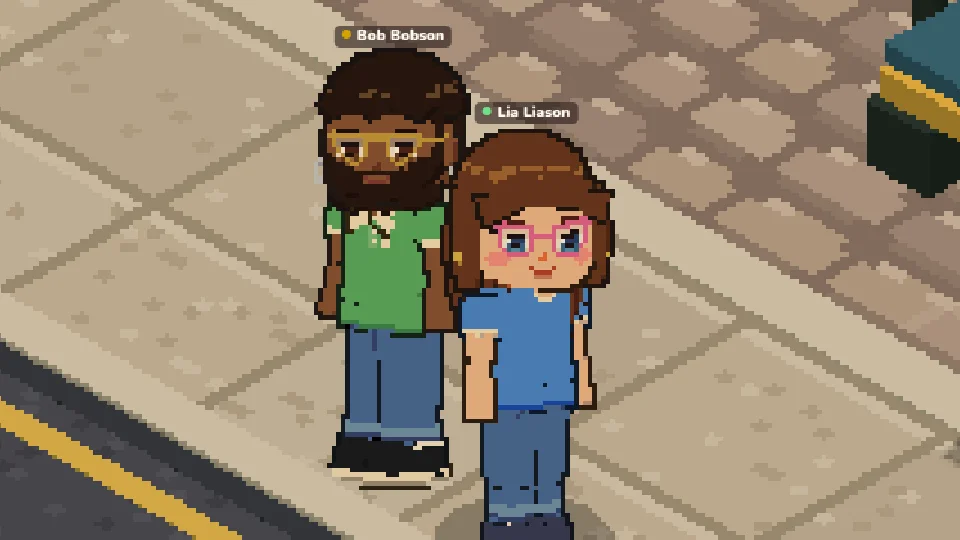
In My character, Clothes opens My look, where you change your character whenever you like; Save keeps the changes and closes it; saving new clothes also takes off your swimwear. Your work uniform goes on by itself while you work and comes off when you stop. Every color is chosen in the color picker: drag on the square and on the rainbow bar to choose any shade, or type its code (like #12abcd). It works for the skin, eyes, hair, hats, clothes, shoes, glasses and swimwear, all free; designer clothes stay in the color chosen at the Boutique. The Random square next to the code picks a whole look for you. Under each tab, a line tells you where to find more: hairstyles, beards, earrings and piercings at a Beauty Salon, hats, clothes, shoes and sets at a Boutique, and swimwear in the Swimwear tab of the Ora Store. An Elder walks with short steps, leaning on a cane.
Accessories
In the Eyes tab, Accessories has glasses, sunglasses, a monocle, an eye patch and a sleep mask. The Face tab has the Cheeks. Beards, earrings and piercings are made at a Beauty Salon and stay on your look when you change the rest. You wear one item of each kind at a time, and glasses come in any color. To take an accessory off (the Hair tab's too), tap it again or tap the first, crossed-out square. In the Hair tab, Accessories has the party hat, free for everyone. Hats and caps sit over the hair you chose.
Umbrellas
In the Umbrella tab:
| Black umbrella | Free |
| Plain colored ones | 200 Coins or 100 Ora |
| Striped and checkered ones | 150 Ora |
| Rainbow one | 200 Ora |
Each is bought once and stays yours.
Costumes
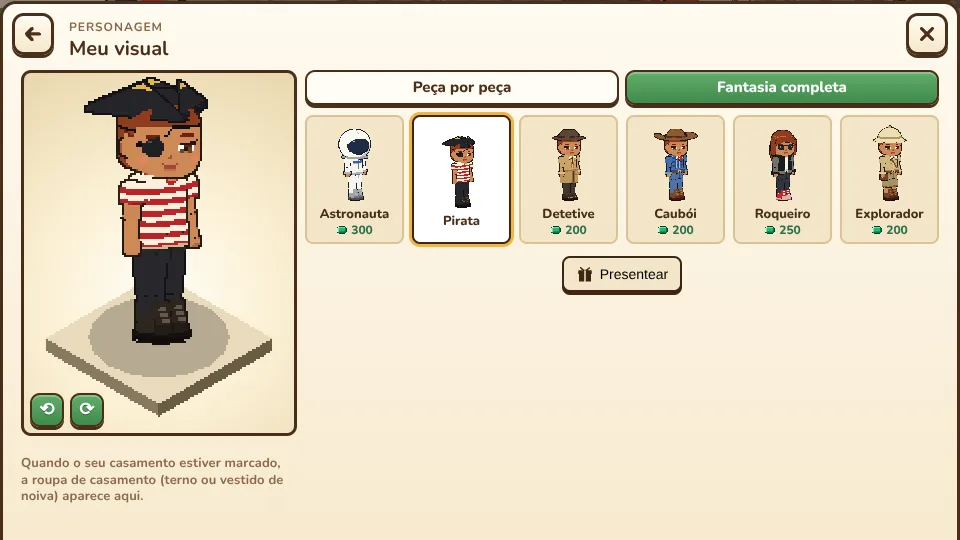
In My look, Piece by piece builds your look item by item and Whole costume puts on a whole costume: astronaut, pirate, detective, cowboy, rock star or explorer — or an animal pajama with a hood, a tail and slippers: duck (yellow, blue, pink or black), bear, bunny, cat, dinosaur or frog. While you wear one, your clothes, hat and face accessories stay put away until you take it off.
If you own an animal pajama, the Put on pajamas button shows up in a room of a home that has a bed: it puts on the last pajama you wore.
Each costume is bought once, with Ora, and is yours all year. It is in the Costumes tab of the Ora Store, where you can also give one to a friend.
Designer clothes
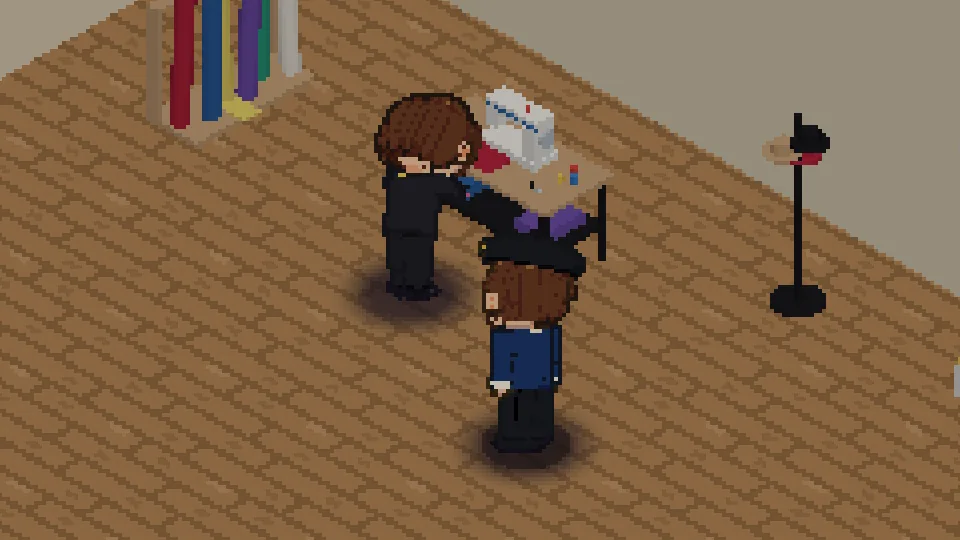
At a Boutique, the Stylist who owns it sells designer clothes you can't find anywhere else. To start, go to the counter and tap Designer clothes: each piece shows on your own character (or on a model, when it is made for another body), at the price the stylist set. Try on dresses your character in the piece in the Fitting room, only on your screen, before buying: you can try several pieces together, turn your character and put each one in the Cart at its price; the X takes a piece off. Each tab has the colour picker: choose any shade to see every piece of the tab in it. Each piece is made to order, in the colour chosen: the stylist sews it and, once made, it goes to your Inventory and shows in My look, in its own part. A piece keeps its colour for good: in My look, its colour has a lock. The same piece in two colours is two items. Dresses, suits and jumpsuits are together in Outfits; tapping the outfit you wear again takes it off.
| Part | Pieces |
|---|---|
| Tops | argyle sweater, bomber jacket, cashmere turtleneck, corset top, denim jacket, double-breasted blazer, faux fur coat, floral linen shirt, knit cardigan, lace blouse, leather jacket, pearl cardigan, puffer jacket, ruffle blouse, satin camisole, sequin top, silk bow blouse, tailored blazer, trench coat, tweed jacket, varsity jacket and waistcoat |
| Dresses & looks | cocktail dress, evening gown, jumpsuit, linen suit, pantsuit, polka dot dress, satin slip dress, sequin gown, three-piece suit, tulle dress, tuxedo, wedding dress, wedding suit and wrap dress |
| Bottoms | chinos, corduroy trousers, flare jeans, leather mini skirt, leather trousers, palazzo pants, pencil skirt, plaid trousers, pleated midi skirt, tailored shorts and tailored trousers |
| Shoes | ankle boots, boat shoes, bow ballet flats, combat boots, designer sneakers, knee-high boots, loafers, Oxford shoes, stilettos and strappy heeled sandals |
| Hats | chic beret, cloche hat, flat cap, knit beanie, panama hat and wide-brim hat |
The Bags tab shows only at a Boutique whose stylist is level 15 or more. There are 8 bags for any body: Baguette, Bucket bag, Canvas tote, Crossbody, Doctor bag, Half-moon, Quilted bag and Straw bag, in the colour you pick. For the first 2 weeks they are for VIPs only: the VIP until tag shows the day and hour everyone can order them. In the Fitting room, On the shoulder and In the hand show both ways to carry it. The bag becomes an item of your Inventory: tap it and pick On the shoulder, In the hand or Take off; it also has the Bags tab in My look. The bag is always on the left side of the body, only on foot: in a car, on a motorbike, seated, lying, swimming, dancing or working it is put away, and when the left hand holds something else it goes on the shoulder.
The Boutique's Football tab has 10 football jerseys for any body: black and white striped, blue and black striped, canary yellow, chest band, diagonal sash, green, maroon and green striped, red, red and black hooped and royal blue. Each jersey always comes in its own colours, so there is no colour to pick. For the first 2 weeks they are for VIPs only: the VIP until tag shows the day and hour everyone can order them. The jerseys you have are in the Football tab of My look; to take one off, put on another top.
The Wedding suit and the Wedding dress are in every Boutique with the Married only tag: only married players can order them, whether they married at the church or in the family. Either of the two fits any body and never goes to other players. While you are married, it has its own Wedding tab in My look: put it on and take it off whenever you like; if the marriage ends, it comes off and waits for a new one. Anyone can order any piece, as many as they like. Some pieces are made only for a woman's body or only for a man's: the Fitting room shows the ones made for your character, and every piece you have shows in My look, on any body, a child's too. Boutique pieces are paid only with transferable Coins and can go to other players through Trade, on their profile. In your Inventory, tap a piece and then Discard: type DISCARD to confirm and it is gone for good. The piece's window shows Made by with the name of who sewed it. You only wear a piece while it is in your inventory: if a piece you are wearing leaves it, through Trade or discarded, that part goes back to your basic clothes. Until the stylist starts sewing it, an order can be cancelled, with the money back. From the first piece in your cart until you leave the Boutique, your character carries a shopping bag in the hand, and everyone sees it.
In My look, the clothes you bought or earned come first, on a golden square with a tag, and a dashed line separates them from the clothes every character has from the start.
Wardrobe
By a Wardrobe in a home where you live (yours, your spouse's, one you are a resident of, or your Hotel room), press Wardrobe: the window shows the designer clothes you carry and the ones put away, side by side, like the fridge. Tap a piece or drag it to the other side to move one. Put all away puts away every piece you carry at once, except the ones you are wearing. Each person sees only their own clothes, and they are in any wardrobe of the homes where you live. A piece put away leaves your Inventory: to wear, trade or discard it, take it back. Putting away a piece you are wearing takes it off, and that part goes back to your basic clothes.
The Stylist's work
Once you graduate in Fashion Design, build a Boutique on a plot. At the counter, set each piece's price, from 100 Coins up. At the sewing table, Sew makes the orders: each sewing minigame you win moves the piece along and, once it is made, its price is yours. Every piece ordered takes wool, sold in the supermarket's Sewing tab for 35 Coins (what the supermarket pays the farmer): hats and shoes 1, trousers and skirts 2, tops 3, sets and dresses 5, and drawn clothes as their model. In your catalogue and in the orders, each piece shows how much wool it takes. The wool is kept in the sewing table: there, Wool shows how much it holds, Store puts in the wool from your inventory (you or someone you invited to work) and Take out gives it back to you (owner only). An order is only sewn with enough wool inside the table; it leaves the table when the piece starts. Without it, the order waits and you keep serving the city's customers, who take no wool. With no orders, Serve customers brings in customers from the city: each one walks in, waits at the counter while you sew and, for each sewing minigame you win, takes the piece, thanks you and leaves, and the game pays you for them. With Edit Boutique, you move the counter and the sewing table and buy the boutique's own furniture: mannequin, clothes rack, full-length mirror, fitting room, shoe display, velvet ottoman, hat stand, fabric rolls and display table.
Stylists of level 15 or more draw their own clothes. In your Boutique's catalogue, Draw clothes opens the drawing table in four screens. First pick the Model (T-shirt, tank top, long sleeve, trousers, shorts, skirt, strappy dress or T-shirt dress); then the Area (the body, each sleeve, the waist, each leg or the skirt), seeing the clothes on your character (Turn shows every side) and how many faces of each area are painted. In Paint, paint each face of the area pixel by pixel (front, back, sides, shoulders, under the hem, the ends of sleeves and legs), seeing the clothes from four sides at once. Colours come only from the colour picker, any shade; Colors in this piece shows the colours used so far, up to 16. Use the Brush, Fill, Paint all, Copy to the other side and Undo; Another area goes back to the areas. In Finish, give them a name of up to 24 letters and tap the price to publish them, for 1,000 Coins. They go into their cut's tab in your Boutique's catalogue, at 500 Coins, and you change their price at the counter like any other piece. Each stylist has up to 20 drawn pieces, sold only at their own Boutique, and a published piece never changes. In the catalogue, Hide takes any piece off sale, yours and the game's, and Show brings it back. Any customer can tap Report clothes on a drawn piece; if it is removed, everyone who has it gets back what they paid. For the first 2 weeks, drawing clothes is VIP only.
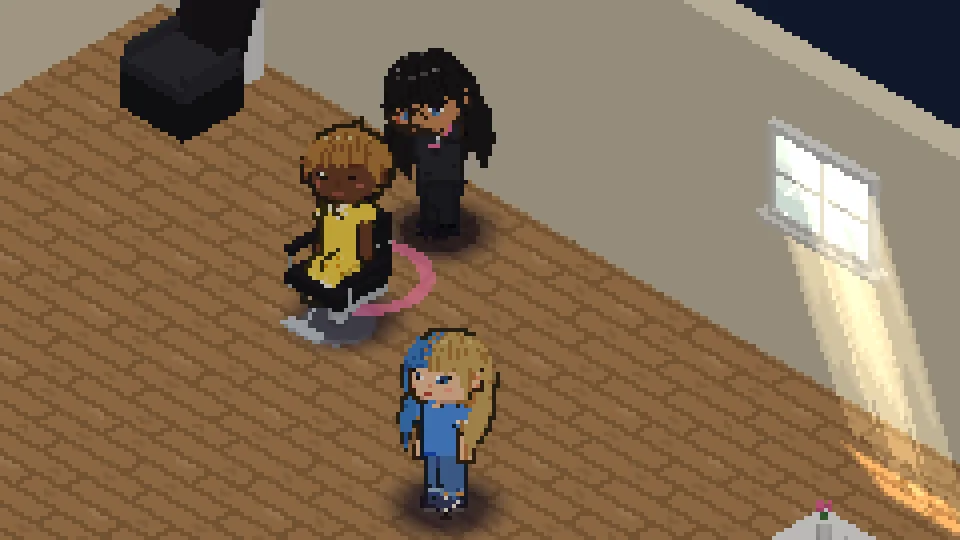
Beauty Salon
At a Beauty Salon, the Hairdresser who owns it makes haircuts found only there, many in two colours, and also beards, earrings and piercings. While they work, go to the counter and tap Services: the Fitting room shows each cut made for your character on your own character, only on your screen, and you can turn the character around. Pick the Base colour and, on the cuts in two colours, the Streaks colour. The button is the price the hairdresser set. Before paying, every time, a warning says that this cut and its colours can only be changed at a Beauty Salon: tap I understand to ask for it.
Your Coins are held while you wait on a waiting seat. When your turn comes, you go to the styling chair and sit down: the hairdresser washes, colours and cuts your hair and, at the end, a glow surrounds your head and everyone sees your new hair. If you leave the queue, get up from the chair or leave the salon before that, your Coins come back. You and the hairdresser must stay in the salon until the end.
In My look, the salon cut you wear stays on the list, with its colours locked. Pick another hairstyle and the salon cut goes, coming back only at a Beauty Salon. Nobody does their own hair: only another hairdresser can.
Beards, earrings and piercings
In the Fitting room, the Beard, Earrings and Piercing tabs show each one on your character, and earrings and piercings come in any colour: the hair's, the streaks' and the jewels' colours are chosen in the colour picker. The first square of each tab takes off what you wear, for free, and one you had already bought before is put on for free too. Before asking, a warning says that beards, earrings and piercings can only be changed at a Beauty Salon. In the chair, the hairdresser plays one minigame: Trim the ends for a beard and In the green for earrings and piercings.
The Hairdresser's work
Once you graduate in Hairdressing, build a Beauty Salon on a plot. At the counter, in Prices, set the price of each cut, beard, earring and piercing, from 100 Coins up: each one shows in a photo next to its price, a cut on your own head when it is made for your character (or on a model, when it is made for another). Behind the styling chair, Work opens the salon once it has at least 2 waiting seats (the waiting sofa counts as 2). Each request lets you know in the game and, with notifications on, on your device. Each cut is three minigames: Wash the hair, Paint the streaks and Trim the ends; a beard, earrings or a piercing is one. A miss repeats the minigame and the customer loses nothing. At the end, the price goes to you. Players are served first; with nobody in the queue, customers from the city come in, wait a little, sit in the chair and leave with a new cut after one minigame, paid by the game.
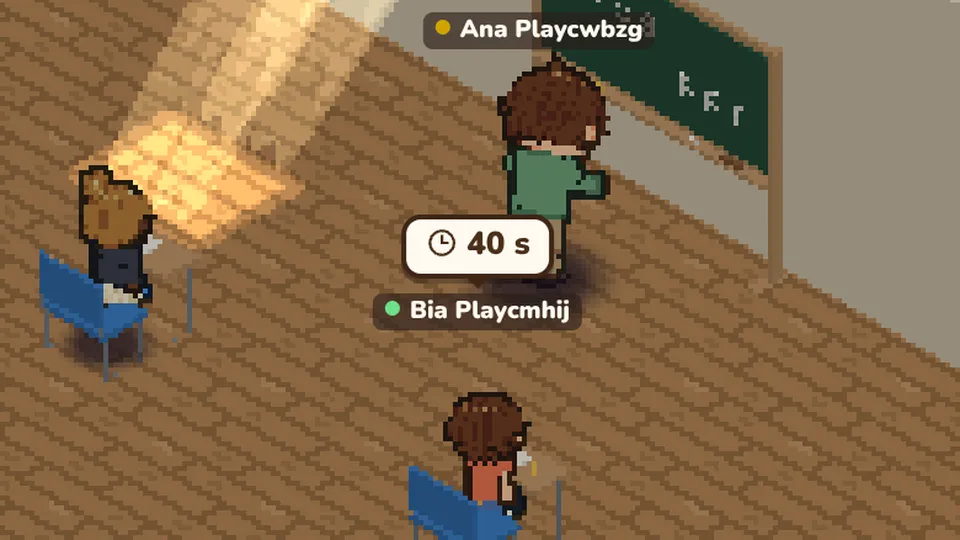
School
At a School, the Teacher who owns it gives classes to children, for free. If your character is a child, go in while the teacher gives a class and sit at a student desk: every so often a blackboard minigame comes, and each one you win adds XP to the School skill. Pupils neither pay nor earn Coins. While there is a free desk, children from the city come in and sit at the others; if you arrive with no desk free, one of them leaves so you can sit.
The Teacher's work
Once you graduate in Pedagogy, build a School on a plot. It comes with the blackboard, the teacher's desk and six student desks. Stand beside the blackboard and tap Teach: with a pupil seated, a child player or one from the city, your minigames come, and each one you win is paid by the game, like the other course jobs. End class stops the class, and the city's children leave. In Edit School you move the blackboard, the desk and the student desks and buy a bookshelf, a globe and cubbies.
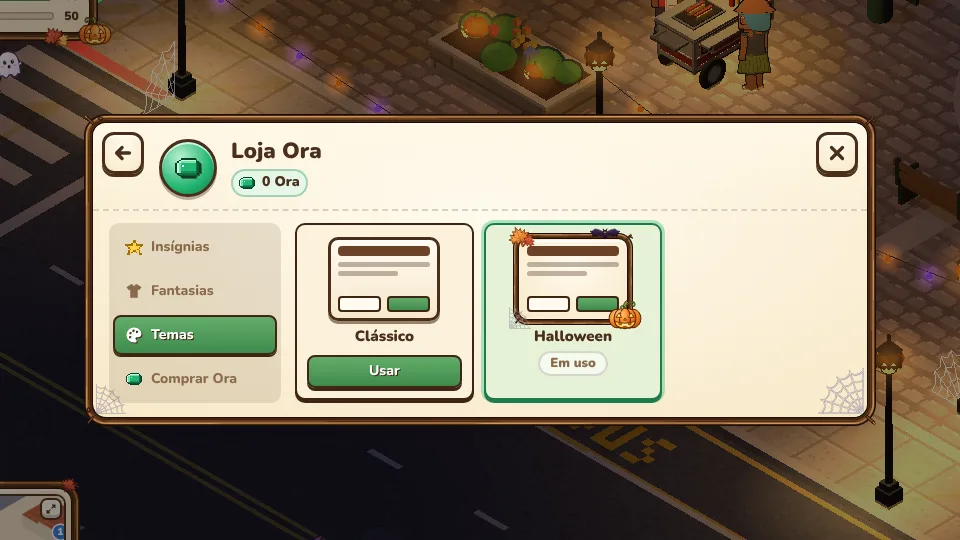
Themes
In the Ora Store, the Themes tab changes how the game's windows and screen are decorated. Classic is the usual one.
During Halloween the Halloween theme shows up: windows and buttons get frames of twigs, and the screen is decorated with glowing pumpkins, bats, little ghosts, autumn leaves, cobwebs, a spider on the map and a witch's hat on the chat. Tap Use to switch: during the event it is free for everyone.
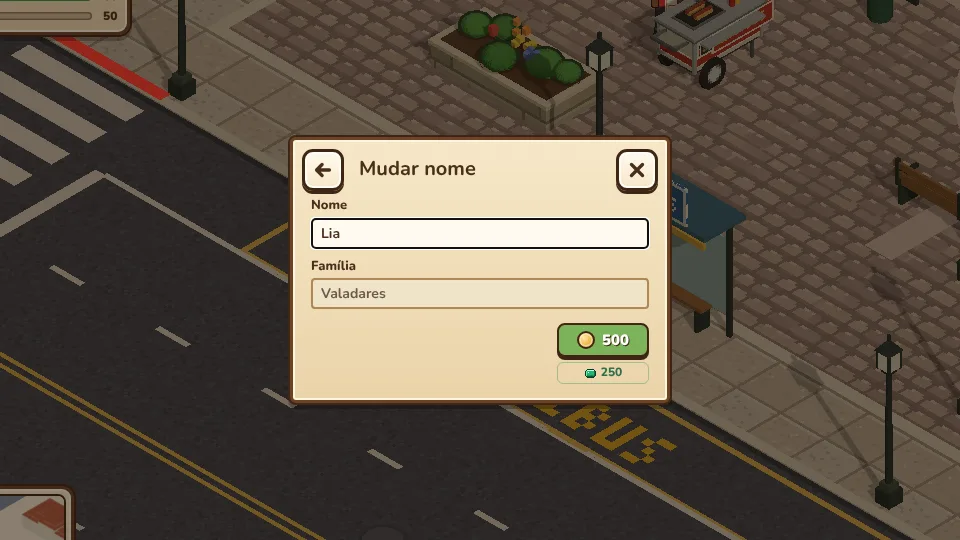
Your name
Your character's name is changed at a Notary's Office: at the counter, the Change name tab charges the price in Coins chosen by the Lawyer who owns the office (500 Coins until they change it). Nobody in your family can already have that name. An office's owner changes this price in the Prices tab. The name changes when they finish your order, with 3 minigames at the desk, and the game enters again with the new name.
Help from Kora
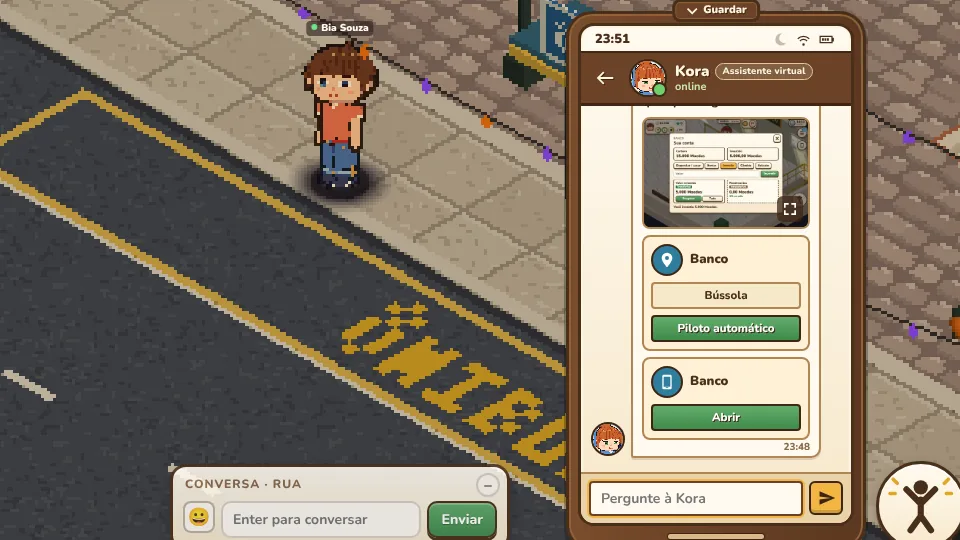
The gold Help button opens, on the game's phone, the chat with Kora, Folkora's virtual assistant. On a computer it is below Missions; on a phone, upright or lying down, it is the round gold button with the ? bubble in the right column, and it is also in the menu (☰). Kora is an artificial intelligence and answers with what is in this Guide and with your own information in the game, including what happened to you in the last 30 days: a pet that died, a fine, a transfer, a trip. Ask her, for example, what happened to your pet.
Ask in your own words, in up to 300 characters. She answers in a few seconds, with the steps, a short video when it helps and the way to the place, with Compass or Autopilot, the same as the map's. The answer may also bring a button that opens a phone app. Each answer marks your question, the way a player replies to another player's message; tap it to go back to the question.
She also sees your information in the game, only yours: Coins, Ora, bank, job and levels, courses and how many days are left, missions, plots, homes, vehicles, pets, fines, jail, friendships, orders at shops, what you put up for sale at the notary's office and what happened in the last 30 days, like a sale or a purchase at the notary's. So she answers things like "how long until I graduate?", "why isn't my plot showing for sale?" or "why can't I buy this plot?". She only reads it: she never changes anything, and she sees nothing about other players.
You can ask up to 20 questions an hour and 40 a day, and the day starts again at 00:00 UTC. The chat is kept for 30 days. Kora changes nothing in your account, gives back no Coins or Ora and never asks for a password, e-mail or phone number.
More topics
 Work and money
 Skills
 Homes and plots
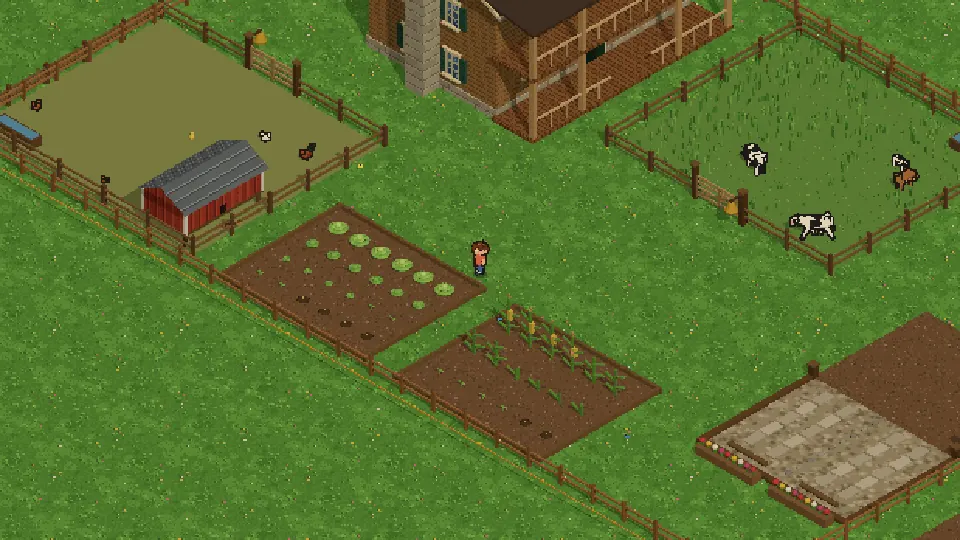 Farm
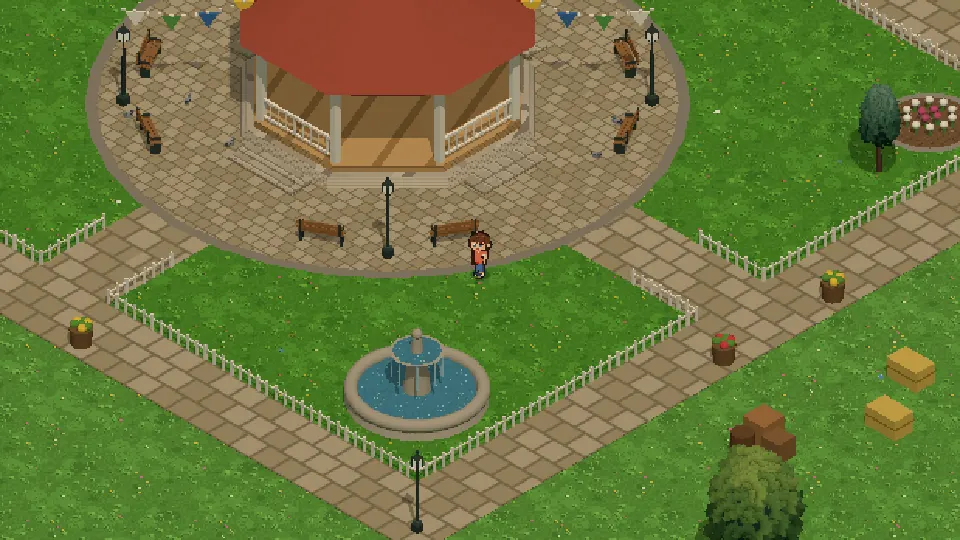 Água Doce and the river
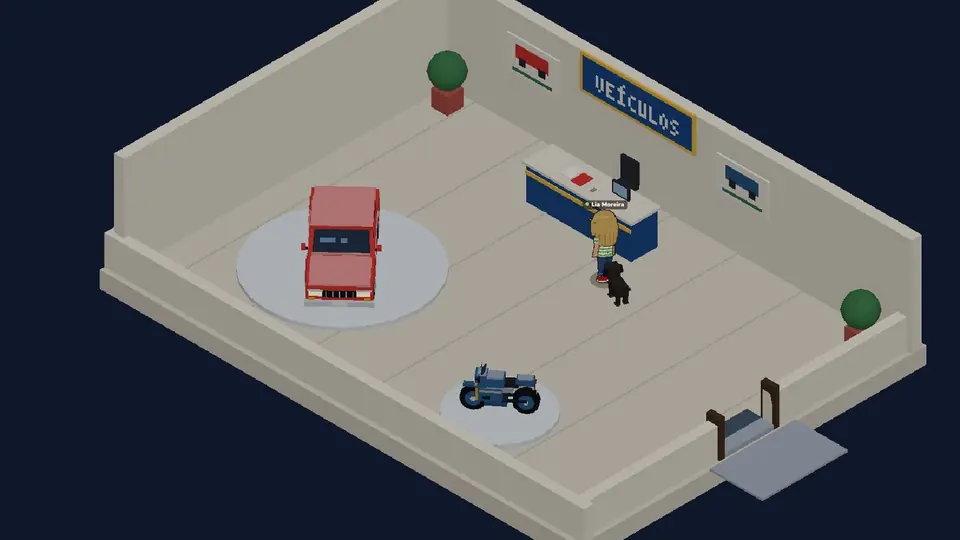 Vehicles
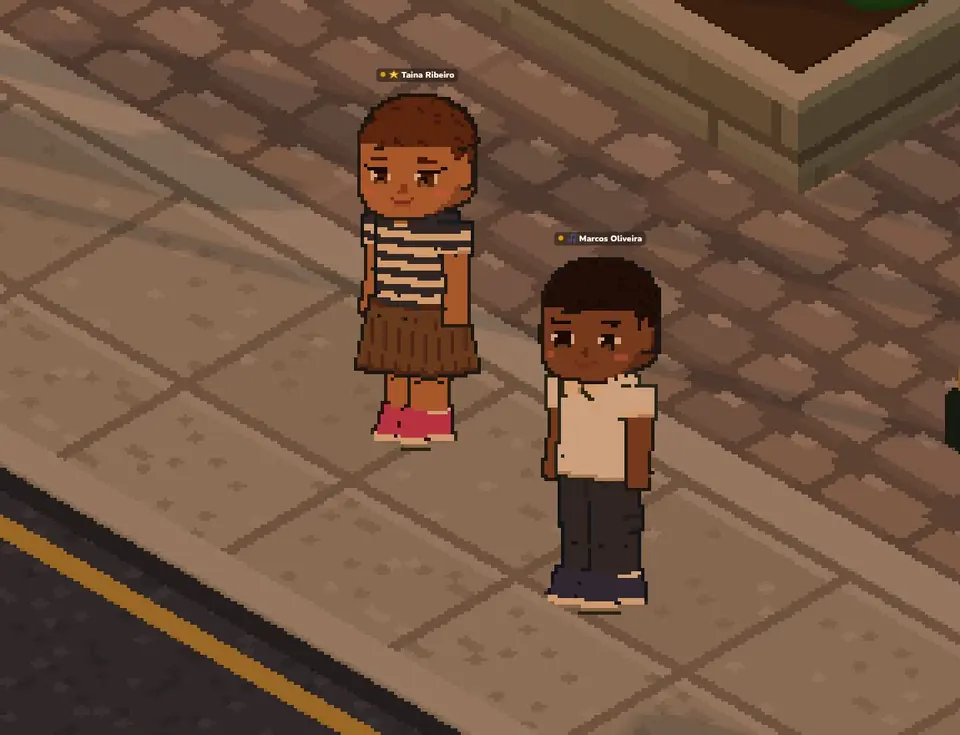 Relationships
 Pets
 Leisure
 Health and police